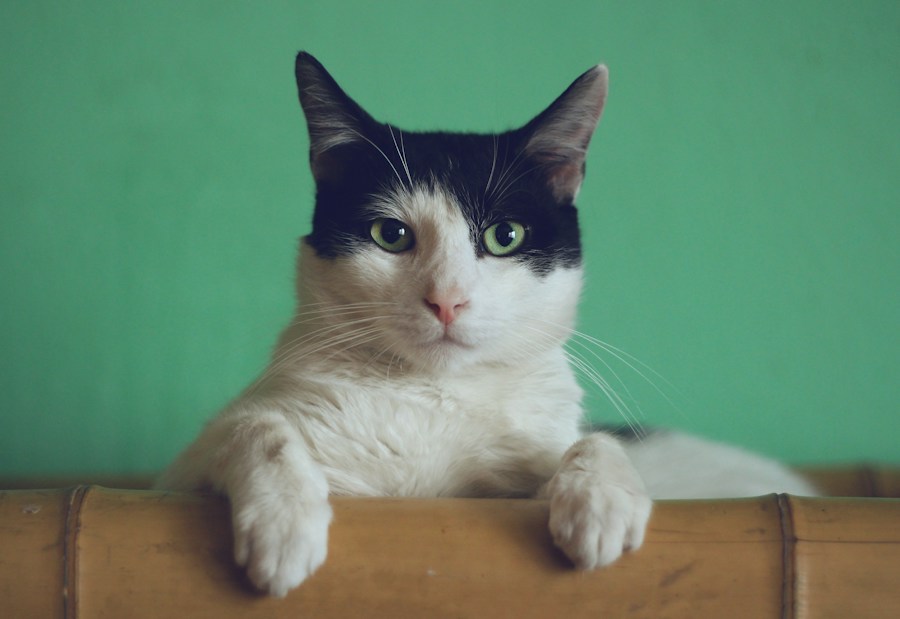
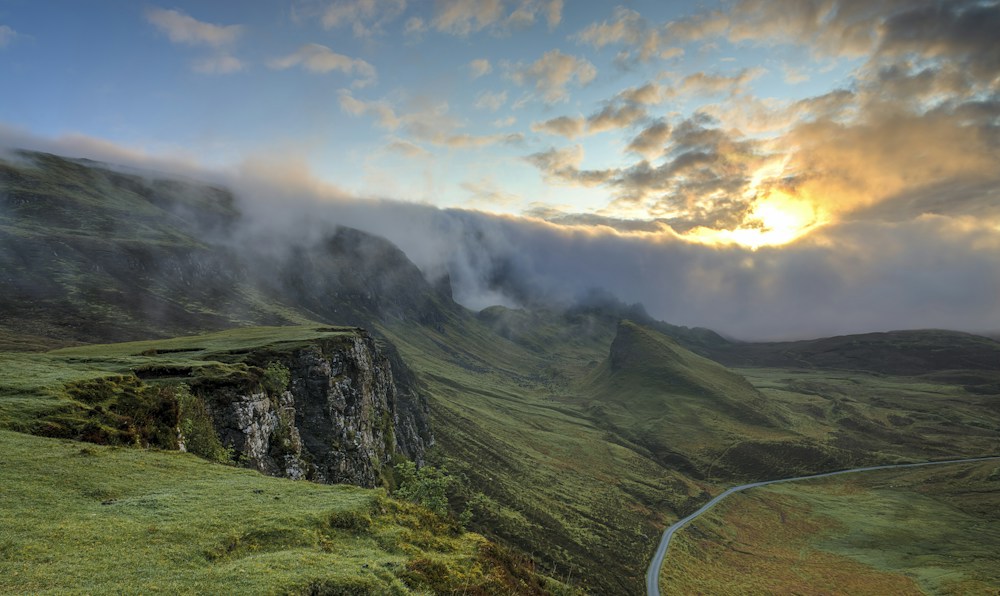
How to animate a landscape, pet or product photo
Turn a still image without people into a five-second AI video. Learn photo requirements, gentle-motion limits and what to do if a task is slow.
AI Greats Image to Video turns a still photo of a landscape, pet or product into a short clip with gentle movement. This preset requests five seconds at 720p and screens both the uploaded picture and generated video for people.
Step by step
- Choose a still JPG, PNG or WebP up to 10 MB with no real or photorealistic people, including background figures, reflections and people shown inside other pictures.
- Open Image to Video and upload the photo. Check account availability and the 60-credit generation cost.
- Select Generate once. The built-in settings request gentle subject motion and a slow camera movement while retaining the source composition.
- Wait for video generation and output review, then inspect motion, edges and visual consistency before downloading.
Check before you publish
- People facing away, partially visible or reflected in glass can cause a photo to be rejected.
- A simple composition makes motion and visual changes easier to evaluate.
- The preset cannot guarantee exact object geometry or a specific camera path.
- Refresh to resume task checking. Contact support about an unconfirmed submission before starting another task.
Common questions
Can I animate a portrait or a group photo?
This Image to Video tool only accepts images without real or photorealistic people. Portrait and group-photo animation are outside its supported scope.
Why might the background change?
The model synthesizes video frames, so composition and background details can vary even when the preset requests preservation.
How long will video generation take?
Time varies with model load and the task. AI Greats does not promise a fixed completion time. Check the existing task to avoid duplicate submissions.
Tool and service details
Image to Video · Pricing · Privacy · Acceptable Use Policy
This guide describes the current built-in preset. Generation availability is shown in your account. AI-generated results may differ from reference media.
Questions about a task? Contact support@ai-greats.com